AI photo booth on Mac: how AI frames work at real events
An AI photo booth takes a normal booth photo and redraws it in a new style before it lands in the frame: a watercolor painting, an anime illustration, a 70s film portrait. Guests love it, but at a real event the hard part is not the AI. It's what happens when the AI is slow or the venue Wi-Fi drops.
Real samples: the booth photo, then the AI version
In each pair, the left photo is what the camera took at a real event and the right one is the same photo after the AI step. All ten were made with the fast model, using a custom prompt for each theme.
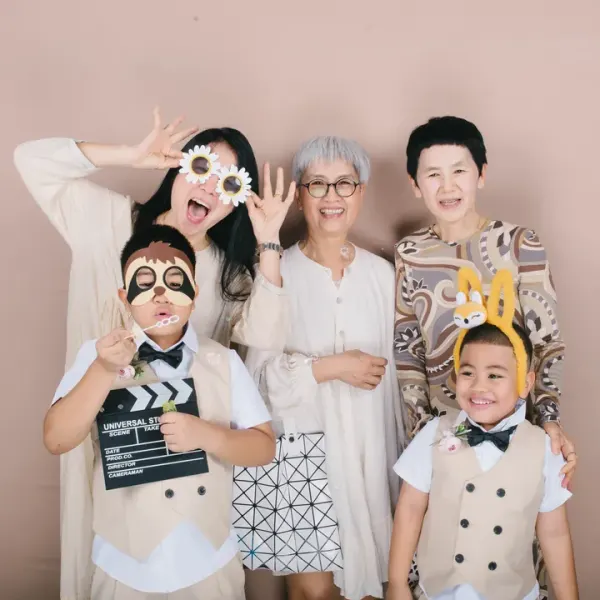
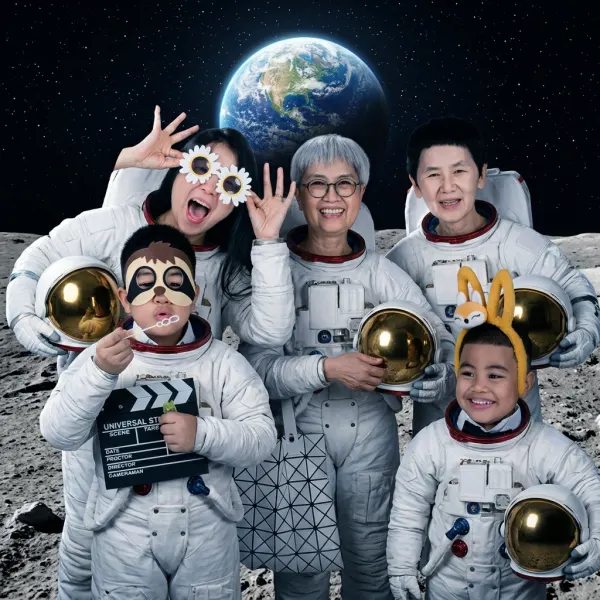
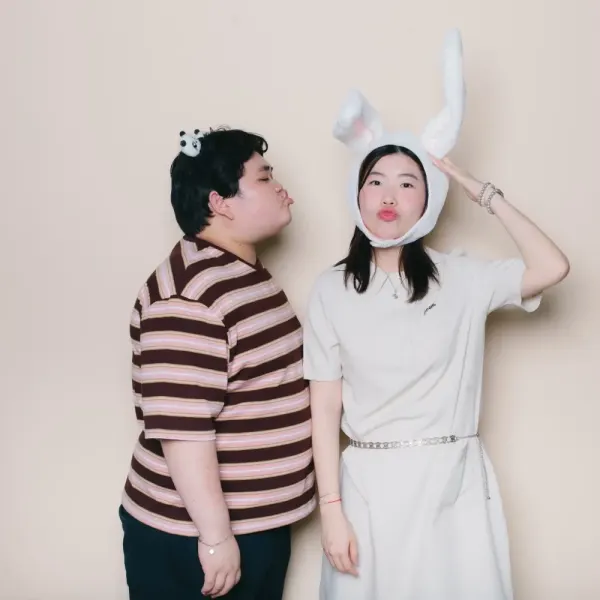
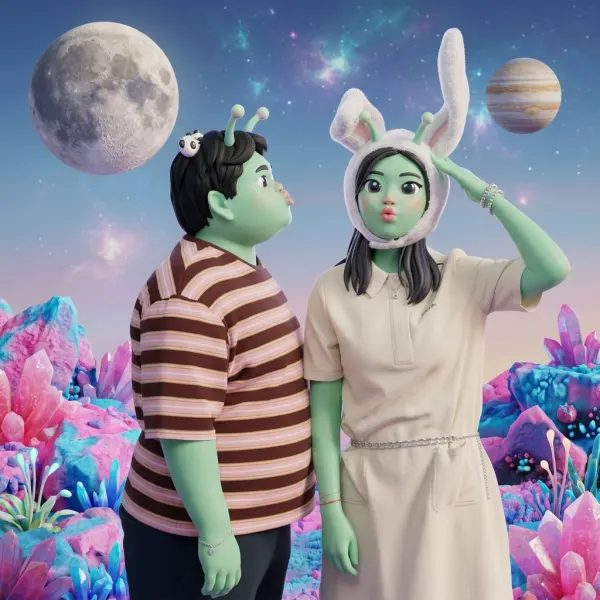
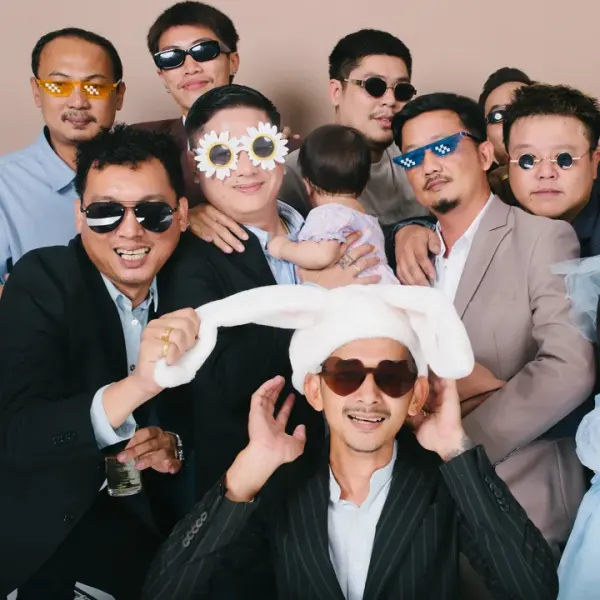
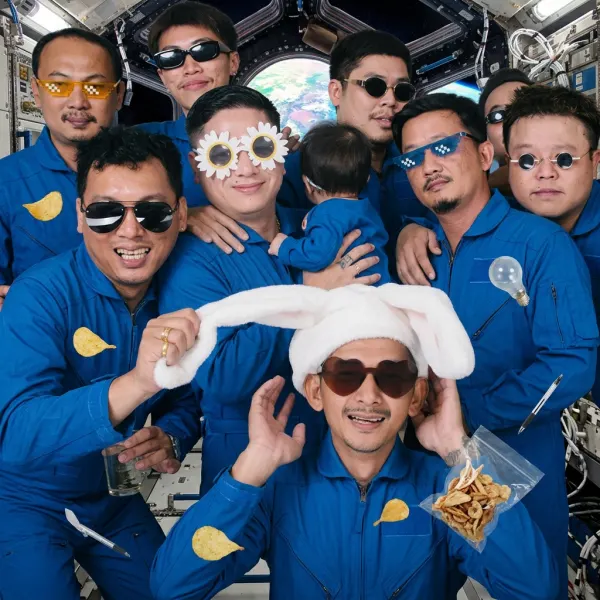
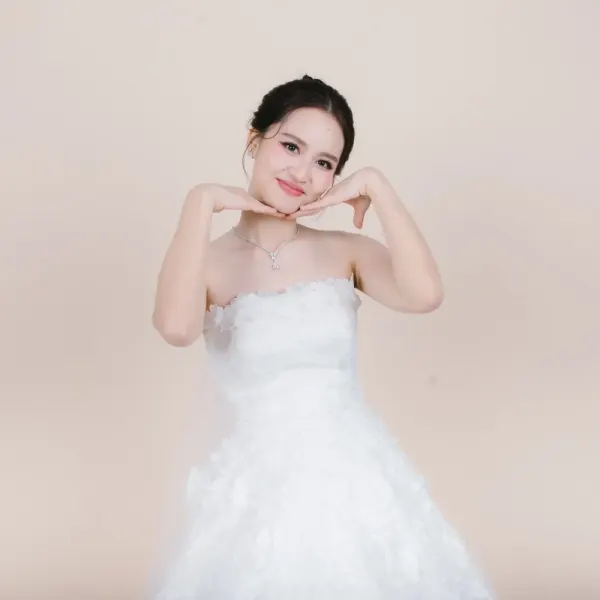
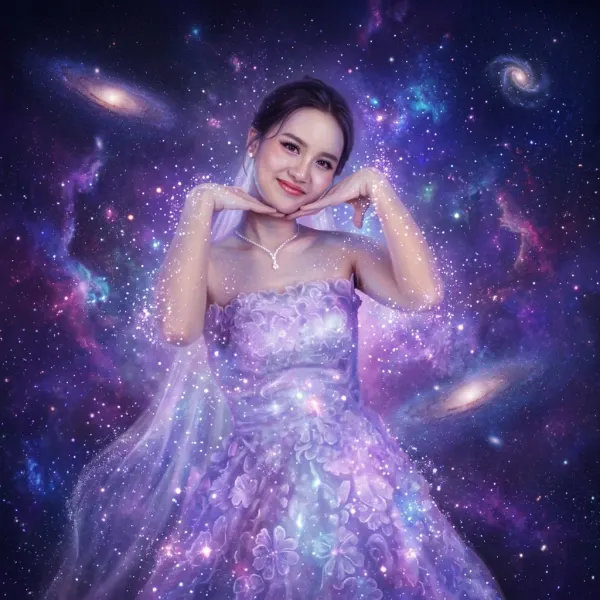
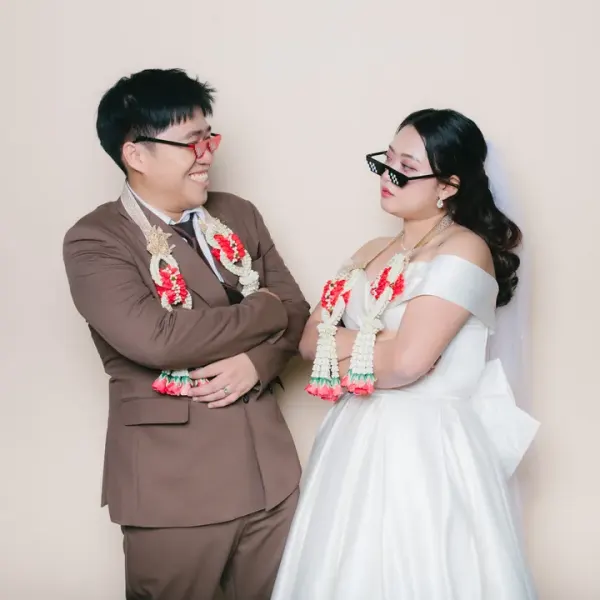
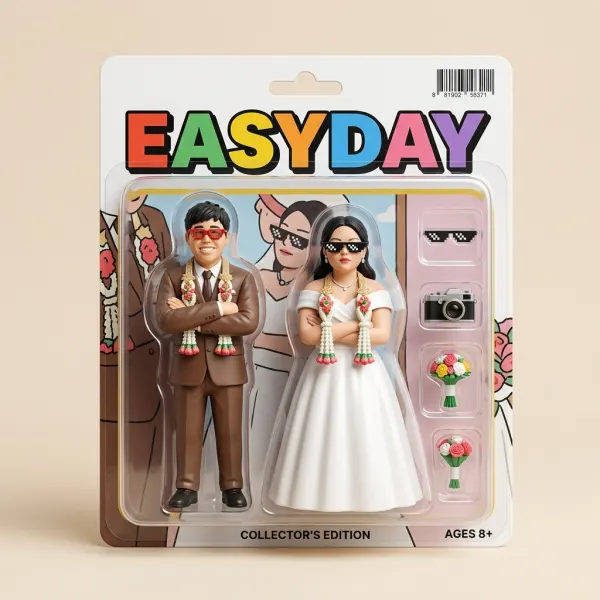
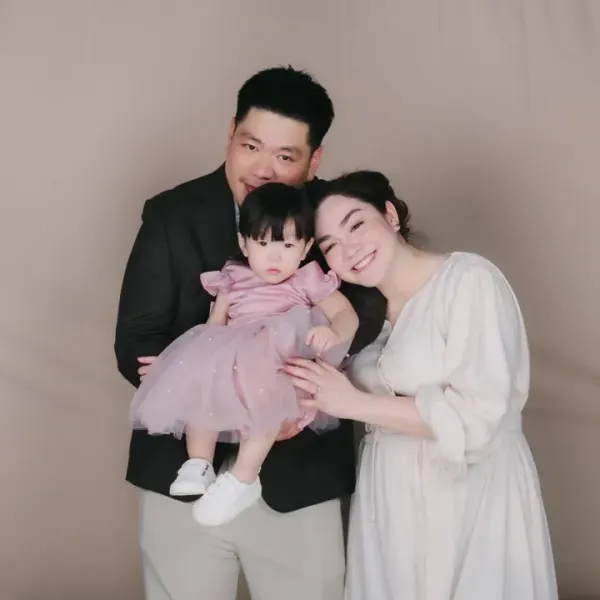
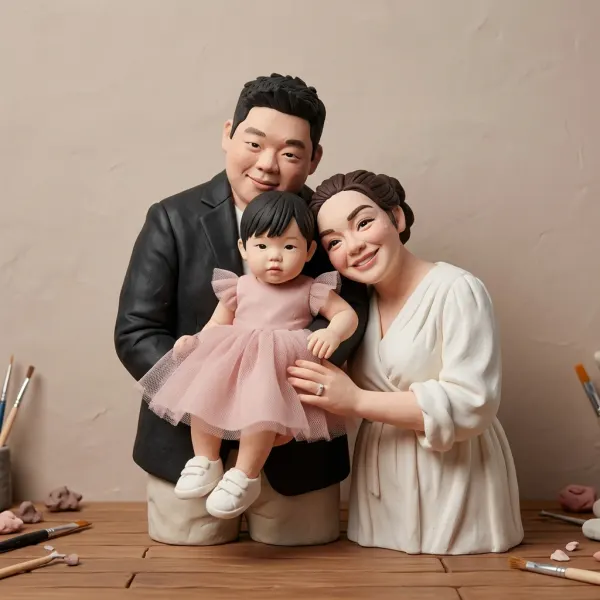
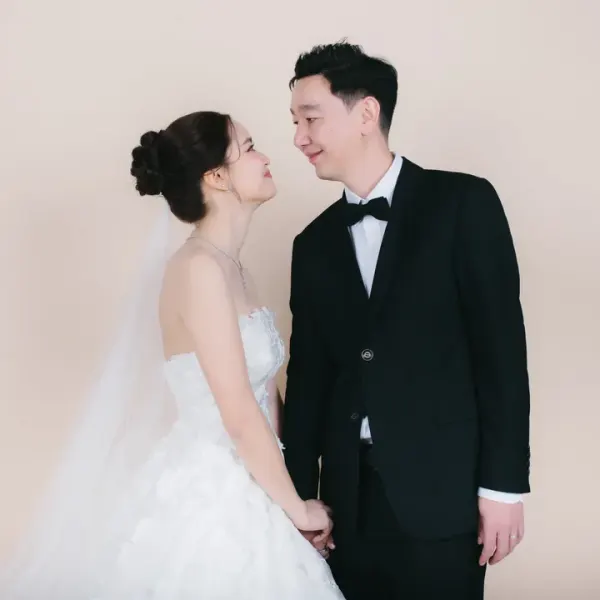
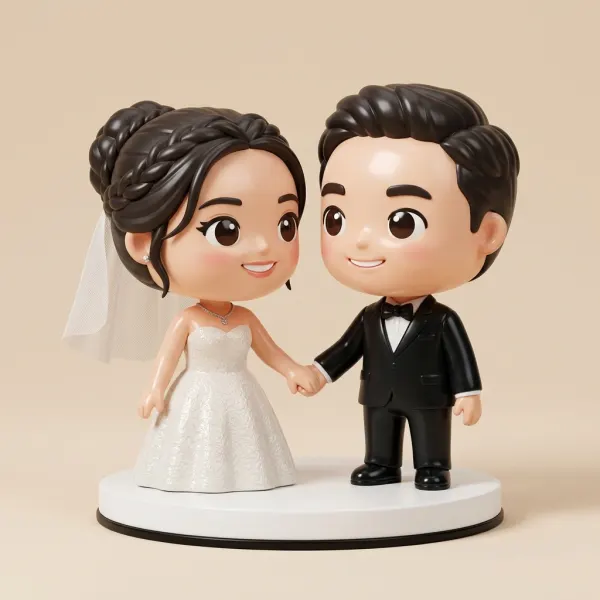
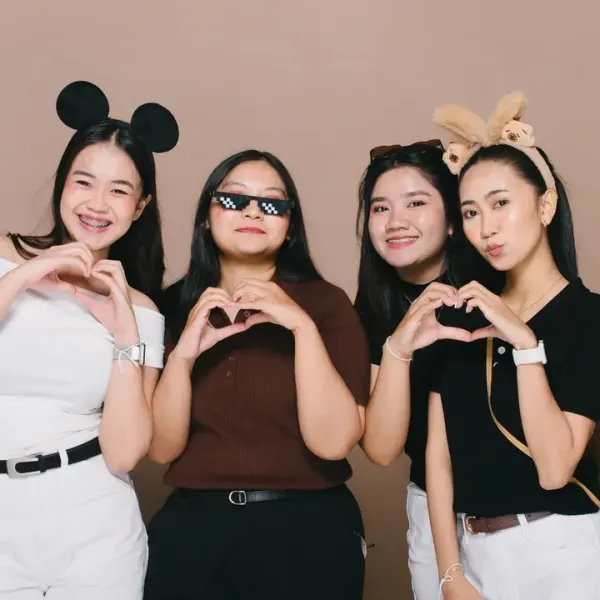
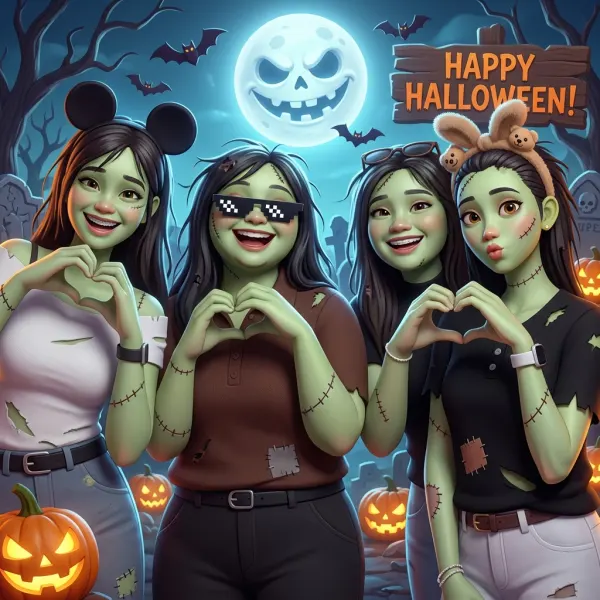
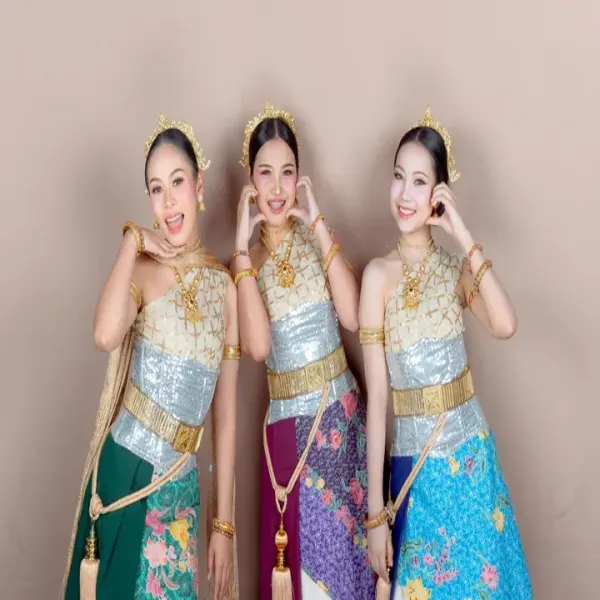
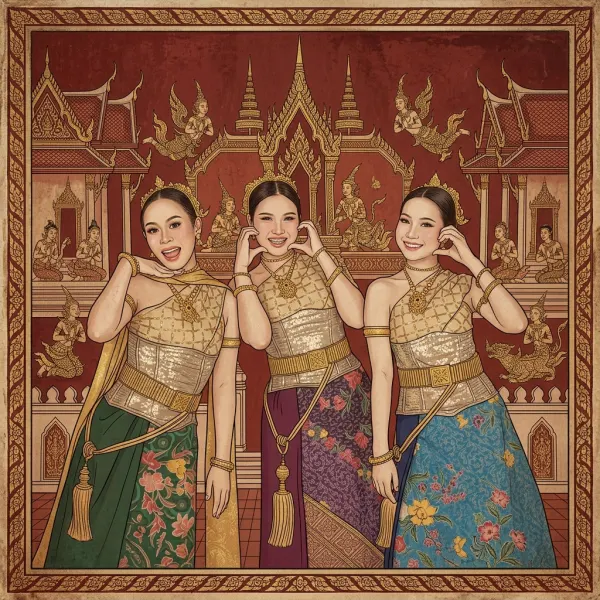
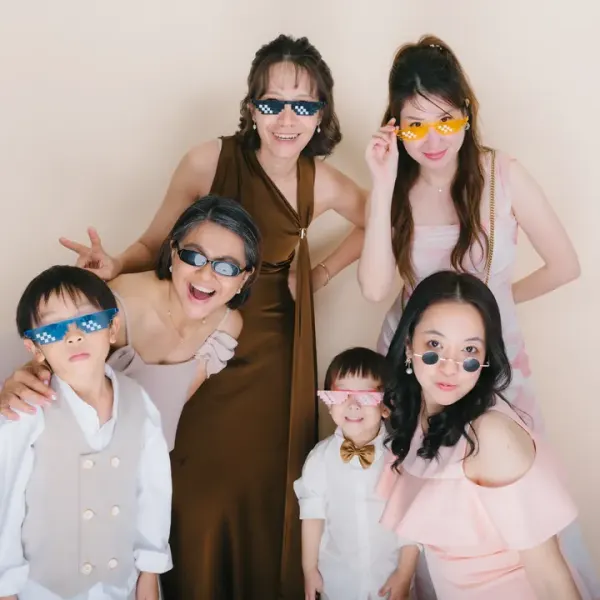
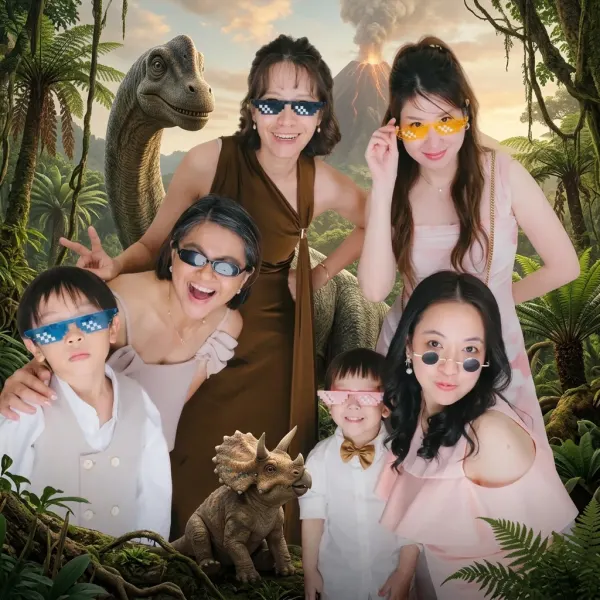
How an AI frame works in Daylabooth
- In the frame editor, turn on AI frame and pick a style, or write your own prompt.
- Guests choose that frame on the start screen and shoot as usual, with the same countdown.
- The booth sends every shot of the session to the AI at the same time, then places the results in your frame.
- The print and the GIF use the same AI versions, so what guests see on screen is what they take home.
You can keep normal frames next to the AI frame in the same event. Some guests want the real photo, and the real photo always works.
The 7 built-in styles
- 3D cartoon: a cute animated-movie look with soft lighting
- Anime: clean line art and soft colors
- Watercolor: pastel washes on paper texture
- Oil painting: a classic portrait with visible brush strokes
- Thai costume: everyone dressed in traditional Thai costume with gold jewelry, background unchanged
- 70s retro: warm faded film colors, grain and period hairstyles
- Comic: bold ink outlines and halftone shading
Or write a prompt for the event's theme, like the ten samples above: astronauts, aliens, boxed action figures, a Thai temple mural, dinosaurs, or a Christmas scene in the brand's colors. Before the event you can run every style on one test photo and compare them side by side, then pick. Each preview uses credits like a real shot.
When the AI is slow, or the internet drops
This is what separates a booth you can trust from a demo. In Daylabooth:
- If the AI takes longer than the time you set (45 seconds by default), the booth uses the real photo and moves on. A result that arrives late is not used, so the guest never waits twice.
- If the Mac is offline or out of credits, the AI frame turns grey on the start screen and guests pick another frame. Shooting and printing carry on as normal.
- If the app is reopened mid-session, AI images already made are reused, so you don't pay twice.
Fast or best quality
| Fast | Best quality | |
|---|---|---|
| Typical wait | about 4–8 seconds | about 10–30 seconds |
| Credits per image | 1 | 2 |
| Good for | busy parties, long queues | weddings, small groups, print-first events |
What it costs
AI frames use credits: 200 credits $27.99. One fast AI image is 1 credit and one best-quality image is 2. You only pay for AI images you actually make; the rest of the booth is covered by your plan.
Set a cap per event so a busy night can't use more AI images than you planned. When the cap is reached, the AI frame turns grey and guests use the normal frames.
Selling AI to your clients
- Show before-and-after samples like the ones above. Clients decide from pictures, not descriptions.
- Sell it as an add-on per event, and price in the cap: you know your maximum AI cost before the event starts.
- Be honest that AI redraws the whole photo. Faces look similar, not identical, especially in big groups. Keeping a normal frame next to it avoids disappointment.
- Check the venue internet early. A phone hotspot as backup is enough for AI images.
Bottom line
An AI photo booth is an easy upsell when it never blocks the queue. Daylabooth runs the AI step in parallel, falls back to the real photo on a timer and greys out the AI frame when it can't work, so the booth keeps shooting and printing whatever the AI does. See how it fits with the rest of the booth on the home page, or read what to compare between photo booth software.